The Screens & Kiosks feature in RUFUS Race Manager (RRM) allows race organizers to launch spectator displays and interactive kiosks for an event.
These pages can be opened on any device with a web browser — TVs, laptops, tablets, or phones — and are designed to be displayed in fullscreen during the race or used by participants to look up information.
Both screens and kiosks update live using the same timing and classification engine running inside RRM. Because they run directly from the local RRM server, they continue working even if the internet connection is unstable, as long as devices remain connected to the local network.
Screens and kiosks can be used for:
- Finish line displays
- Leaderboards and podium rankings
- Checkpoint activity monitoring
- Participant results lookup
- Bib and registration verification
Accessing the Screens & Kiosks Manager
Screens and kiosks are created and managed from the Screens & Kiosks Manager dialog.
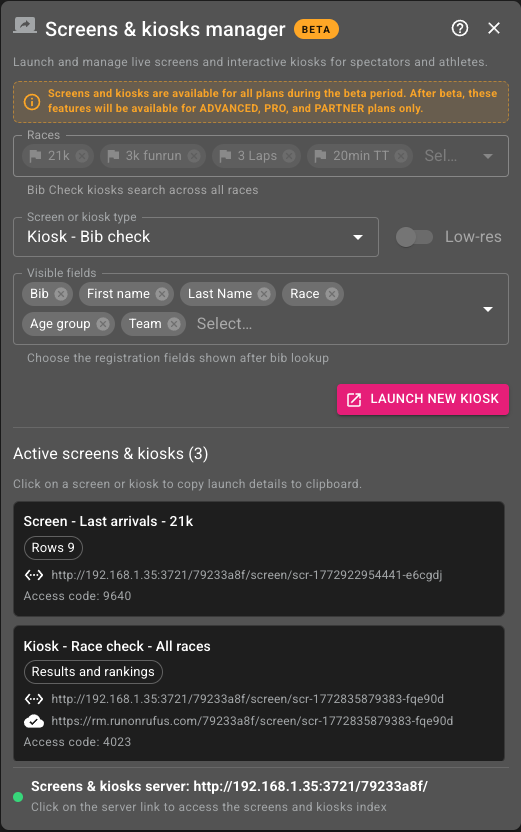
To open it:
- Click Screens in the RRM top bar.
- The Screens & Kiosks Manager dialog will appear.
From this panel you can:
- Launch new live screens or kiosks
- Copy access links
- View active screens and kiosks
- Delete entries when no longer needed
Launching a Screen or Kiosk
To create a new screen or kiosk:
- Select one or more Races.
- Choose a Screen or Kiosk type.
- Configure the available options depending on the selected type.
- Click Launch New Screen or Launch New Kiosk.
Once launched, the item will appear in the Active Screens & Kiosks list with its connection links and access information.
Screen & Kiosk Access
Each screen or kiosk generates a unique access link and a 4-digit access code.
The first time the page is opened, the viewer must enter the access code to display the screen or kiosk.
This mechanism helps:
- Prevent uncontrolled public sharing
- Limit unnecessary connections
- Protect race infrastructure during live events
Each screen provides two links.
LAN Link
The LAN link works inside the local network.
Example:
http://192.168.1.36:3721/{event_token}/screen/{screen_token}This is the preferred option for screens located at the race venue.
Cloud Link
The Cloud link allows access over the internet.
Example:
https://rm.runonrufus.com/{event_token}/screen/{screen_token}To enable internet access, the cloud link must be activated using the cloud icon in the screen entry.
Active Screens
All launched screens appear in the Active Screens section of the Screen Manager.
Each screen entry shows:
- Screen or kiosk name
- Configuration chips
- LAN access link
- Cloud access link (when enabled)
- Access code
Clicking a screen entry copies its details to the clipboard for easy sharing.
Screens and kiosks can also be deleted from this panel when they are no longer needed.
Screen Types
RRM currently supports several screen formats designed for different race situations.
Last Arrivals
The Last Arrivals screen shows the most recent participants reaching a selected checkpoint or finish.
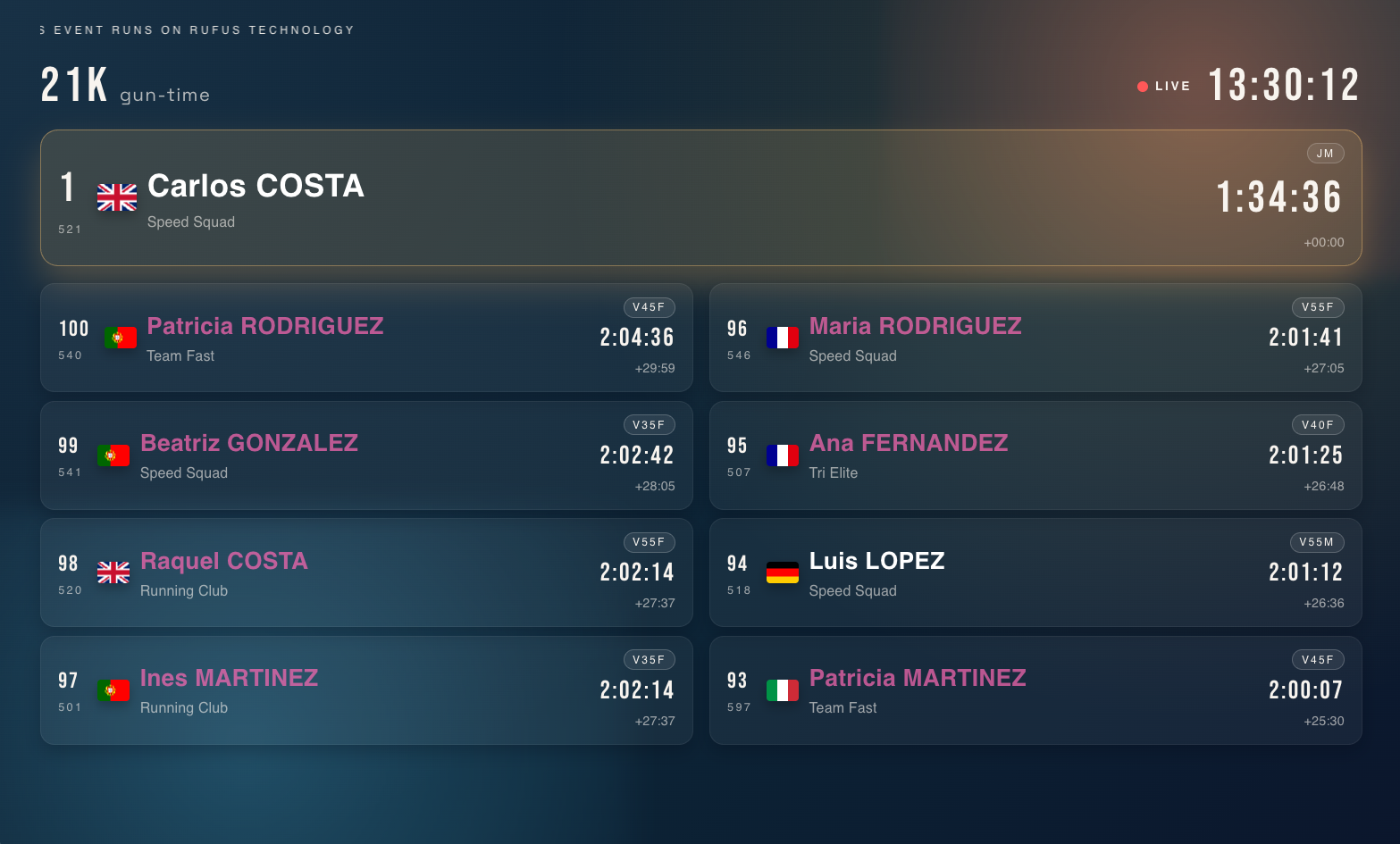
Typical uses include:
- Finish line displays
- Athlete arrival feeds
- Spectator information boards
Features include:
- Automatic highlighting of new arrivals
- Multi-column layout on large screens
- Continuous live updates
A winner pin option allows the first finisher to remain visible as a reference while new arrivals appear below.
Podiums
The Podiums screen displays top ranked participants according to podium definitions configured in the event.
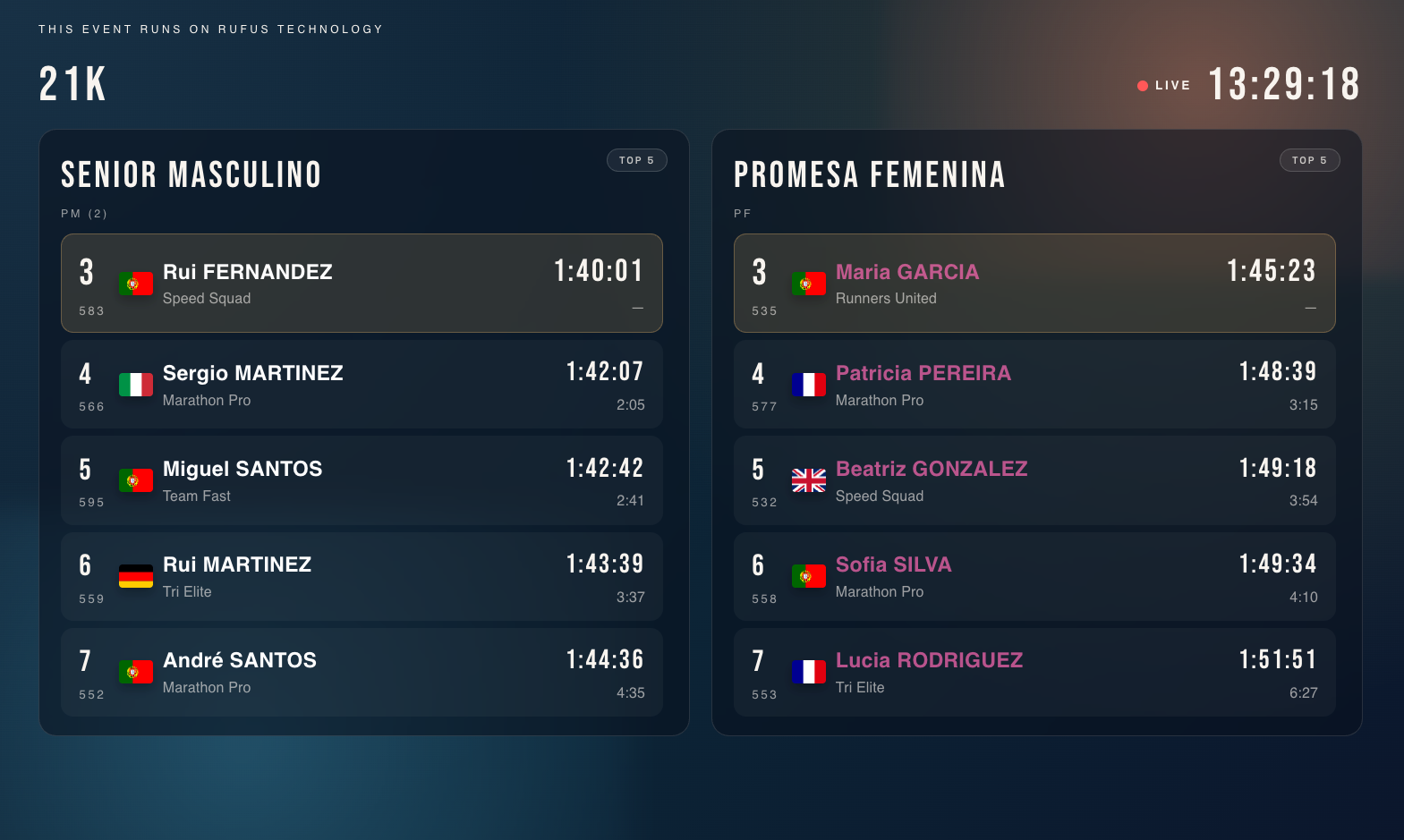
Supported rankings include:
- Overall
- Gender
- Age groups
- Groups or categories
Operators can configure:
- Top 3, Top 5, or Top 10 rankings
- Exclude winners from secondary podium groups
When a group contains more participants than can fit on screen, the display automatically scrolls before switching to the next group.
Checkpoint Info
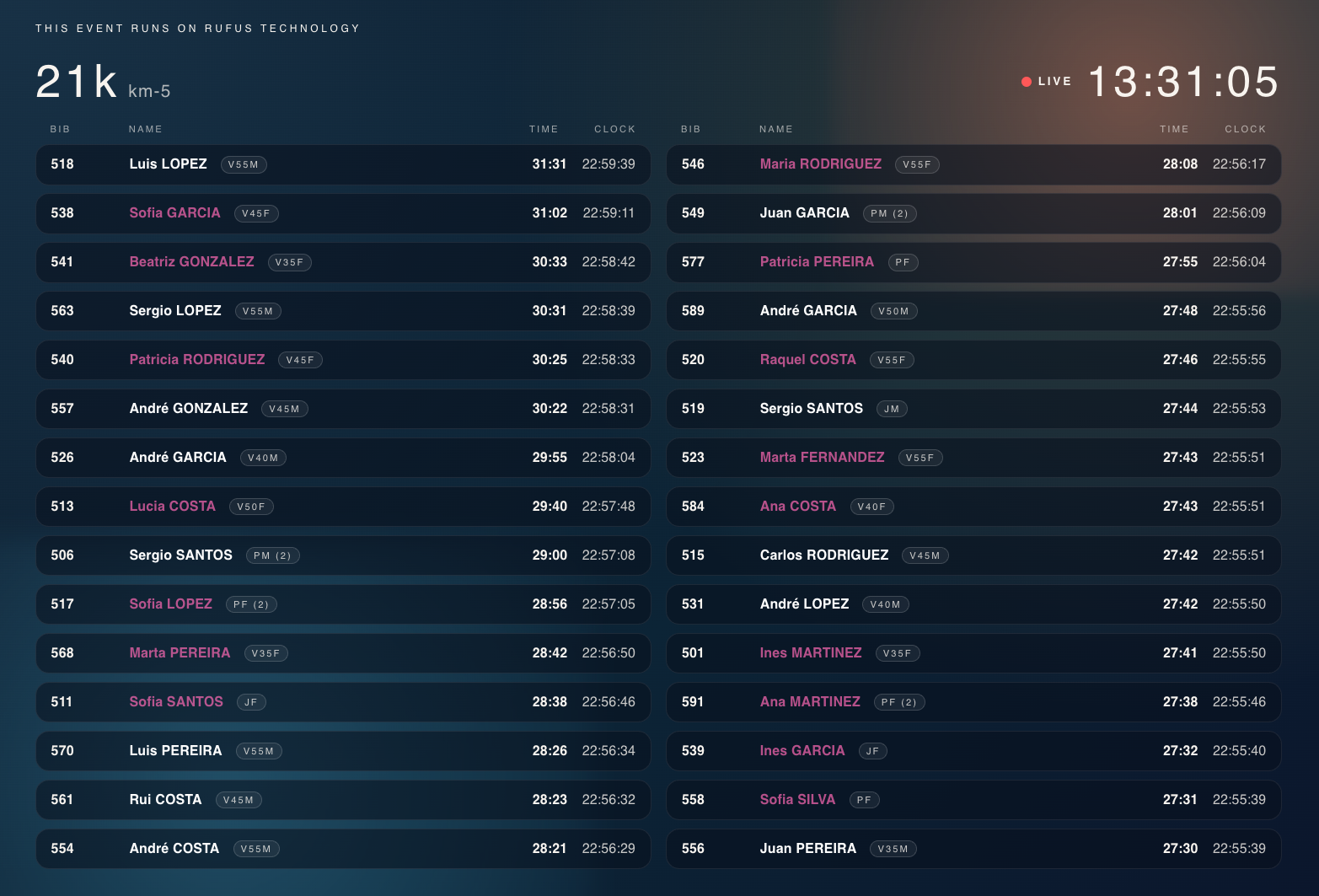
The Checkpoint Info screen displays the most recent passings recorded at selected checkpoints.
This screen helps spectators and organizers monitor activity at specific timing points along the course.
Event Showcase
The Event Showcase screen provides a combined overview of the event designed for large displays and spectator information boards. It brings together several key race elements in a single layout, including last finishers, podium standings, and the live race clock. This screen is particularly useful for finish-line displays or event expo screens where spectators can quickly understand what is happening in the race.
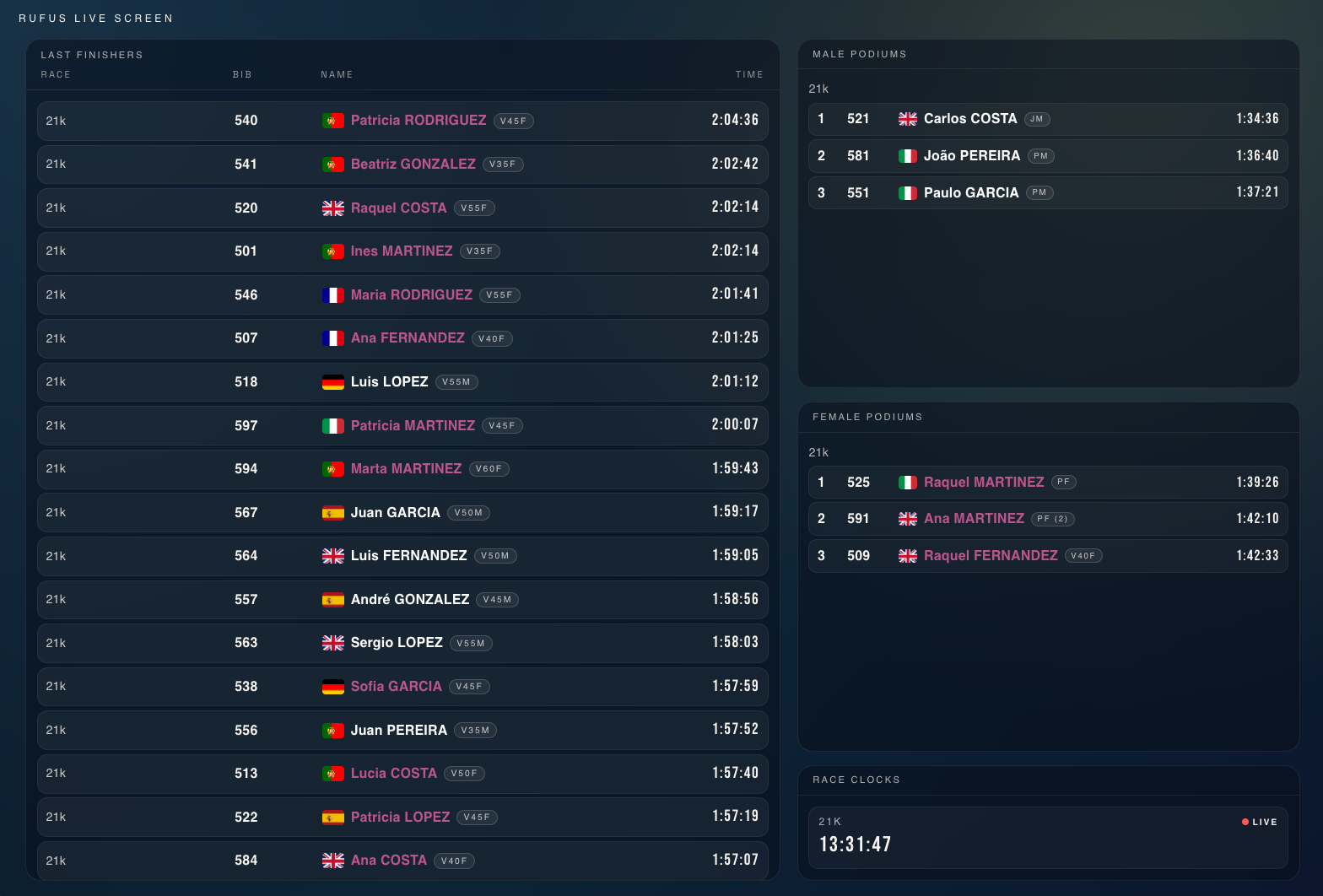
The left side of the screen typically shows the most recent finishers, updating live as participants cross the finish line, while the right side highlights podium rankings such as overall or gender leaders. A live race timer is also displayed to indicate the current race time.
The Event Showcase is designed to present a dynamic, continuously updating summary of the event, making it ideal for public-facing screens during the race.
Low-Resolution Display Mode
Some screen types support a Low-res mode.
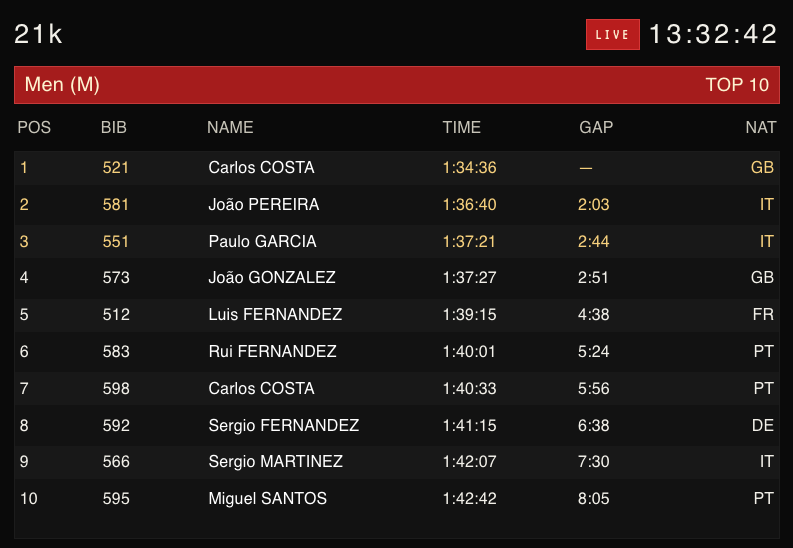
This option is designed for:
- LED matrix displays
- Scoreboards
- Minimal hardware displays
Low-resolution mode removes graphical elements and uses a simplified layout optimized for high visibility and limited display capabilities.
Multi-Race Screens
A single screen can display multiple races simultaneously.
When configured this way, the screen automatically switches between races.
The screen will prioritize:
- The race with the most recent activity
- Periodic rotation when races are inactive
This ensures spectators always see the most relevant information.
How Live Screens Update
Live screens connect directly to the local RRM data engine.
This architecture provides several advantages:
- Instant updates
- No dependency on cloud synchronization
- Reliable performance during live events
- Operation without internet access
Screens remain synchronized with race timing and classification logic running inside RRM.
Kiosk Types
Kiosks are interactive pages designed for participants or spectators to look up information directly.
They are commonly used on tablets, laptops, or self-service stations placed at the event venue.
Bib Check Kiosk
The Bib Check kiosk allows participants or staff to quickly verify registration information.
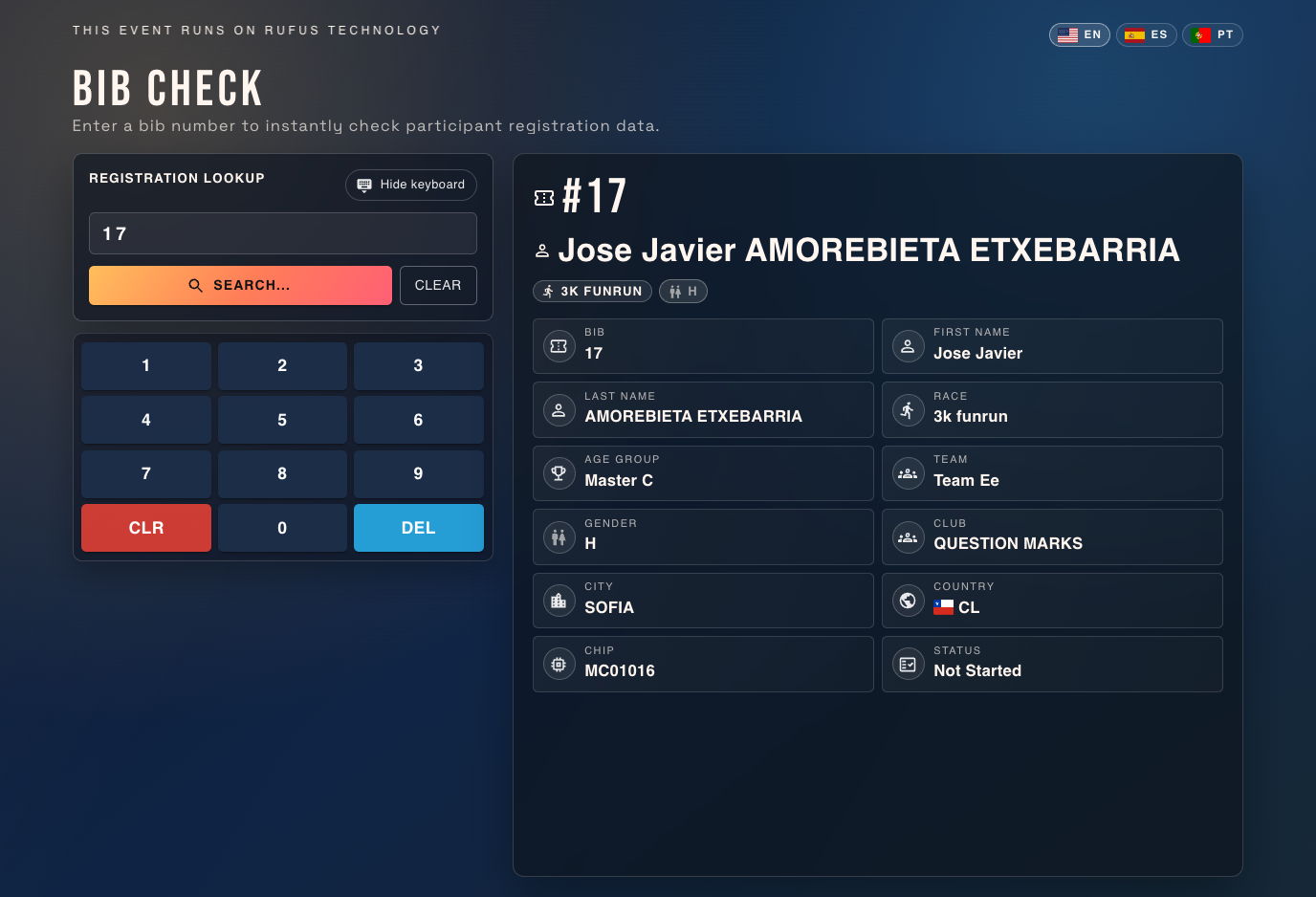
Users enter a bib number using the on-screen keypad to retrieve the participant’s registration data.
Features include:
- Search across all races in the event
- Configurable registration fields displayed after lookup
- Clean participant information layout
Operators can select which fields to display, such as:
- Bib
- First name
- Last name
- Race
- Age group
- Team
- Club
- City
- Country
This kiosk is useful for bib pickup areas, registration desks, or race-day support stations.
Race Check Kiosk
The Race Check kiosk allows participants and spectators to search live results and rankings by bib number.
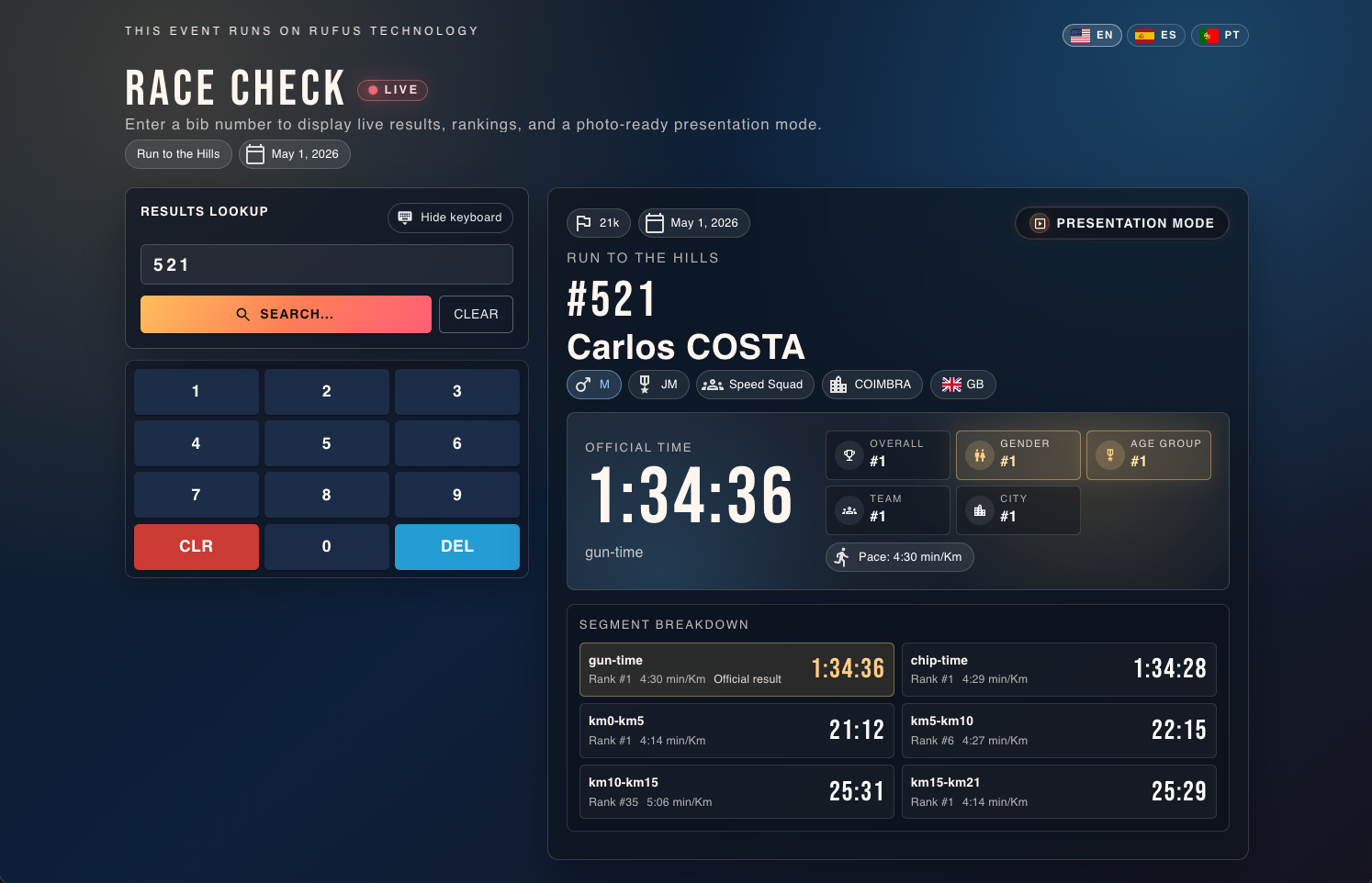
After entering a bib number, the kiosk displays:
- Official race time
- Ranking positions (overall, gender, age group, etc.)
- Segment breakdowns
- Participant information
It also includes a Presentation Mode, which displays the result in a large photo-friendly format for finish-line pictures or social media moments.
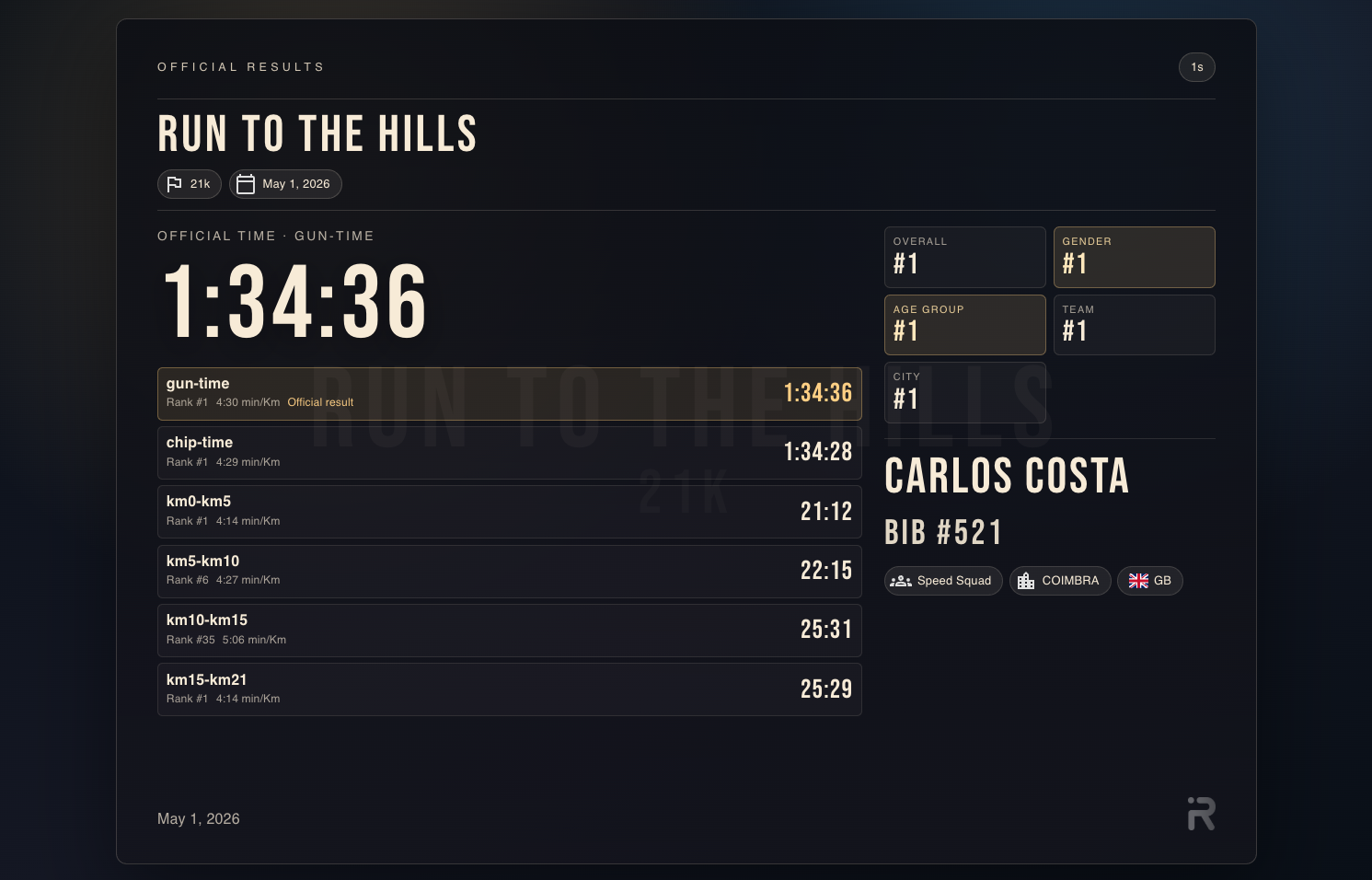
Race Check kiosks search across all races in the event, making them ideal for results kiosks near the finish line or event village.
Summary
The Screens & Kiosks feature allows race organizers to create professional spectator displays and interactive participant kiosks.
Using the Screens & Kiosks Manager, operators can:
- Launch live race displays
- Provide self-service participant lookup kiosks
- Share secure viewing links
- Display rankings, arrivals, and results in real time
Because screens and kiosks run directly from RRM’s local timing engine, they deliver fast, reliable, real-time race information during live events.