Race Cam gives your team a video view of a checkpoint. Cloud manages the camera, paired phone, recording status and saved footage. RUFUS Race Manager (RRM) connects the camera to an event checkpoint and lets operators review its video alongside their race work.
Availability: alpha access requires approval for your organization. The RRM integration is available from RRM 1.1.1.
Race Cam is a video review tool. It does not recognize bibs or faces, run OCR, or create timing passings. Race Photos is a separate feature; its photo-matching capabilities do not apply to Race Cam.
Before you start
- Check that your organization has approved Race Cam access and recording allowance available. Seeing the access request form does not mean access has been granted. Camera creation also respects your plan's Cloud device limit.
- Use an organization owner or administrator account to create and edit the camera, manage phone access, assign it to a checkpoint, or finish a recording from Cloud. Members with TIMER or READ_ONLY roles can view and play their organization's footage when access is enabled, but cannot manage the camera. The checkpoint phone uses its own pairing access.
- Prepare a phone whose browser supports camera access over HTTPS and WebRTC video. Allow camera access and, if required, microphone access. Test the exact phone, browser and connection you will use before race day.
- Provide power, a stable mount and Internet access. Keep the camera page visible and the phone unlocked throughout capture. Race Cam has no offline video buffer on the phone; interruptions can leave gaps.
- For event-linked video in RRM, use version 1.1.1 or later and synchronize the event with Cloud. Assign the camera before starting the recording.
This guide uses the phone's camera. Support for external IP/RTSP cameras, OBS sources or video-file imports is not confirmed here.
Alpha limits and storage
| Item | What to expect |
|---|---|
| Cameras | One camera per organization. Reuse your existing alpha camera. |
| Session length | Up to 60 minutes, including recorder setup after you request the start. Your configured policy may set a shorter limit. |
| Recording allowance | The initial alpha allowance is USD 7 per organization per month and may be adjusted by an administrator. This is a usage allowance, not a subscription price or a guaranteed number of recording hours. It resets each calendar month in UTC. |
| Retention | Footage is kept under a seven-day archive policy. Check Available until for the exact expiry of each recording. |
| Playback | Reviewing retained footage does not use the recording allowance. Authorized access and unexpired footage are still required. |
| Capacity | If recording slots are busy, try again later. Saved footage remains available. |
Review the Race Cam alpha notice on your camera for the conditions returned by the service for your organization. Temporarily stopping the video does not pause or reset the session's time limit.
1. Request access and create a camera in Cloud
- Open Devices and select the Race Cam creation tab.
- If access is not approved, choose Request access. In Join the Race Cam alpha, enter Expected recording minutes per month and submit the request. Enter a whole number from 1 to 1,000,000.
- While the request is pending, use Check access status. Wait for approval before creating the camera.
- Once approved, enter a Camera name and choose Create Race Cam. Use a recognizable name such as “Finish line · north side”. Open the camera from the confirmation or device list.
- To add crew instructions, open Edit camera, fill in Placement notes, and save. The name supports 60 characters and the notes 240.
Creating a camera does not start a stream or recording. If your organization already has its alpha camera, use Open camera to work with it.
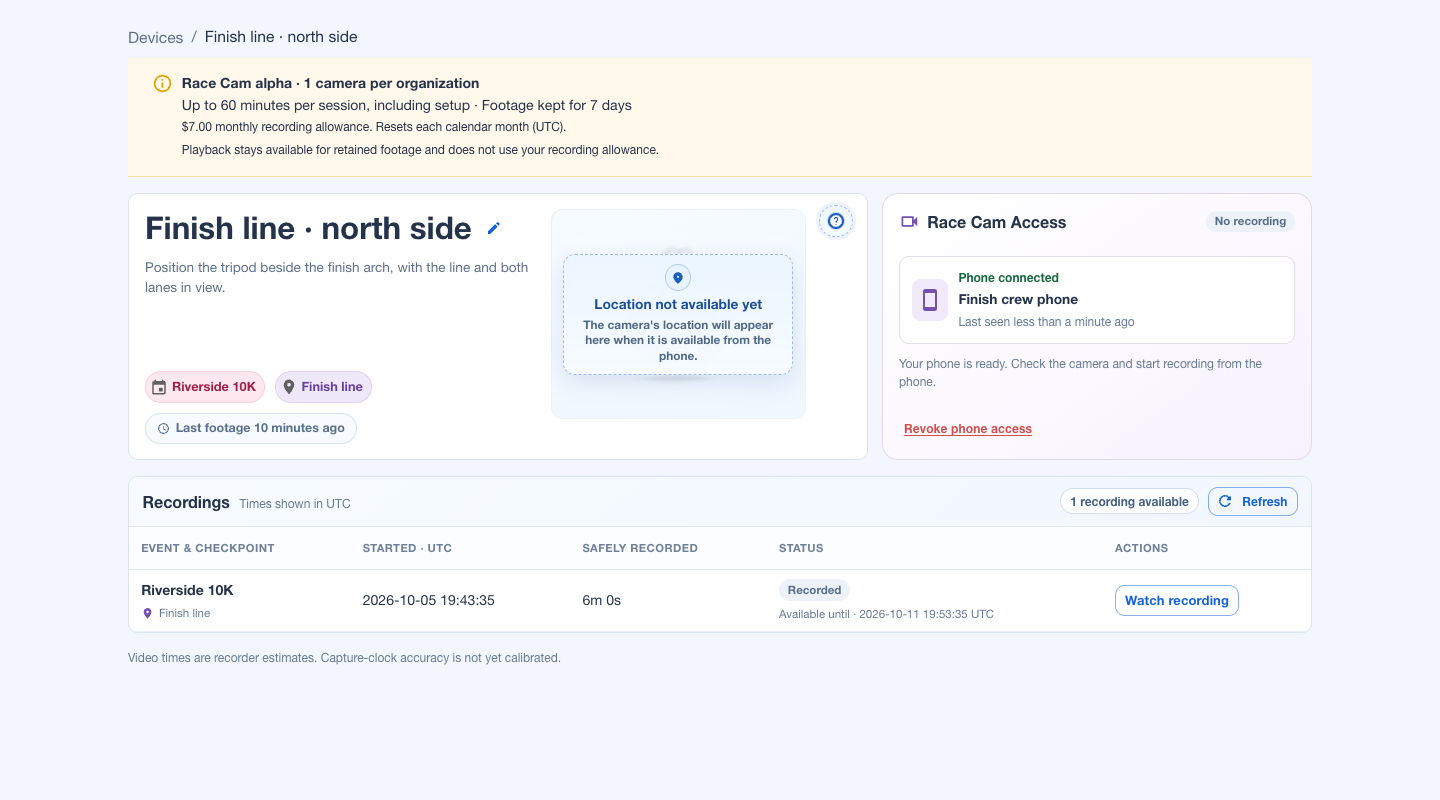
2. Pair the checkpoint phone
- In the camera detail page, find Race Cam Access and choose Pair phone.
- Scan the QR code with the phone you will use. Alternatively, choose Copy link or Open phone page. Share this access only with the person operating the camera.
- On the phone, enter a Phone label and choose Pair this phone.
- Check that Cloud shows Phone connected. Pairing alone does not open the camera or start recording.
An unused pairing link expires after ten minutes. Request a new link if the previous one has expired or has already been used. To replace a paired phone, finish any active recording, choose Revoke phone access, then pair the replacement.
QR codes and pairing links are omitted from this guide's screenshots because they grant camera access.
3. Assign the camera in RUFUS Race Manager
The Race Cam integration is included from RRM 1.1.1. Cloud and the checkpoint phone still handle camera setup, pairing and the start of capture.
- Open your synchronized event in RRM and prepare its checkpoint.
- Open Devices → Cloud, choose the camera and select Assign checkpoint in the device dialog. A camera has one checkpoint and does not use the bounce time of timing devices.
- Save the assignment. The camera appears in the event's device list with its checkpoint, recording status and available footage.
- Use Open in Cloud from the camera's menu to reach setup and phone pairing.
- Choose Watch to open the Race Videos panel. Select a camera and recording, then use the playback controls. You can enlarge, detach or minimize the panel.
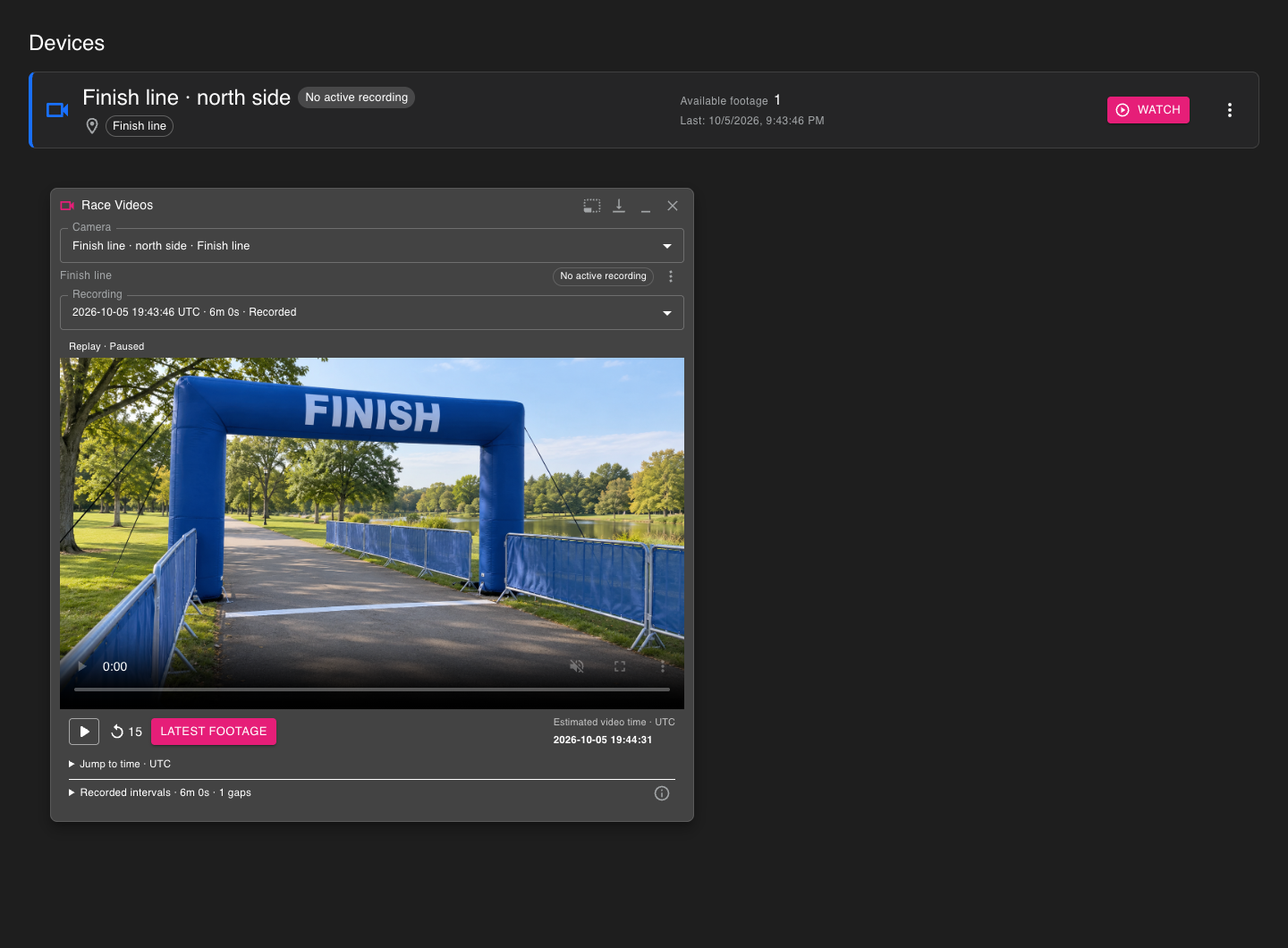
Minimizing suspends playback. Reopening restores the reviewed moment in a paused state. Closing or minimizing the panel does not finish capture. Use End recording and confirm when you intend to stop the session; this requires management permission.
To change the assignment, first finish any active recording, then use Change checkpoint or Remove from event. Each recording retains the event and checkpoint recorded when that session started. Moving a camera later does not relabel earlier footage.
Camera assignments are separate from timing devices and do not create passings. This guide covers review through the camera and its recordings; direct entry from a participant or passing time is not part of the described workflow.
4. Check the view and start recording
- If you need audio, enable Include microphone in Camera settings before opening the camera. The microphone starts off and cannot be changed while preview or recording is active.
- Choose Open camera and grant the browser permissions. Check the view. Preview · Not recording means the camera is open locally; this preview does not start capture or upload its video.
- Position the phone to cover the area you need and choose Start recording.
- Wait for setup and check the recording status and the time marked saved. A connected phone alone does not prove that footage is stored.
- Keep the page visible. Tap the screen to reveal hidden controls, or enable Keep controls visible in the settings.
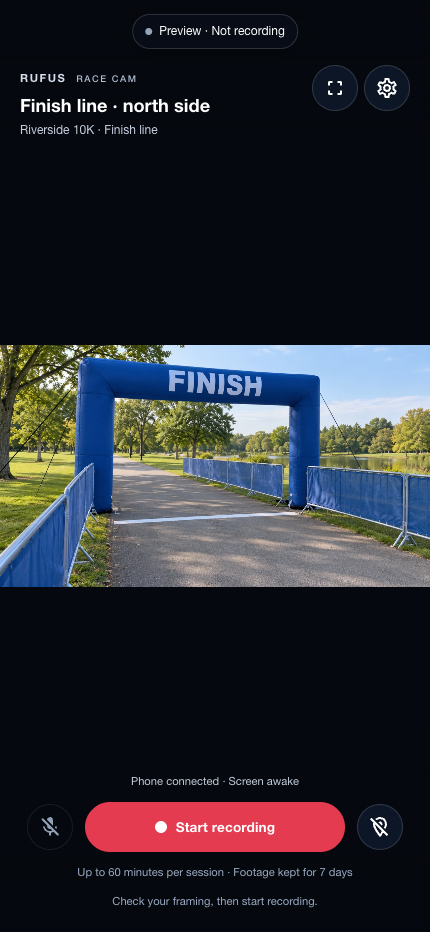
The browser is asked to prefer the rear camera and 1280 × 720 video, but the phone and browser determine what is available. This is not a resolution or quality guarantee.
Location sharing is optional. Under Camera settings → Camera location, choose Share location to send the phone's latest position to Cloud's camera map. Browser permission is required, and updates pause when you leave this screen. Stop sharing and clear map stops location updates and requests removal of the stored position. Sharing location does not assign a checkpoint and is not required to open the camera.
5. Monitor what is being saved
During a session, Race Cam Access in Cloud shows Safely recorded, Awaiting upload, and Last update · UTC. Check that the confirmed duration advances and that the status is recent.
- Safely recorded is footage confirmed by the service.
- Awaiting upload is footage still pending in the archive workflow.
- Status unavailable means there is no sufficiently recent status reading. It does not mean zero footage or prove capture has stopped.
- Recording needs recovery means a complete archive has not been confirmed. Check the footage that is available and contact support if the state persists.
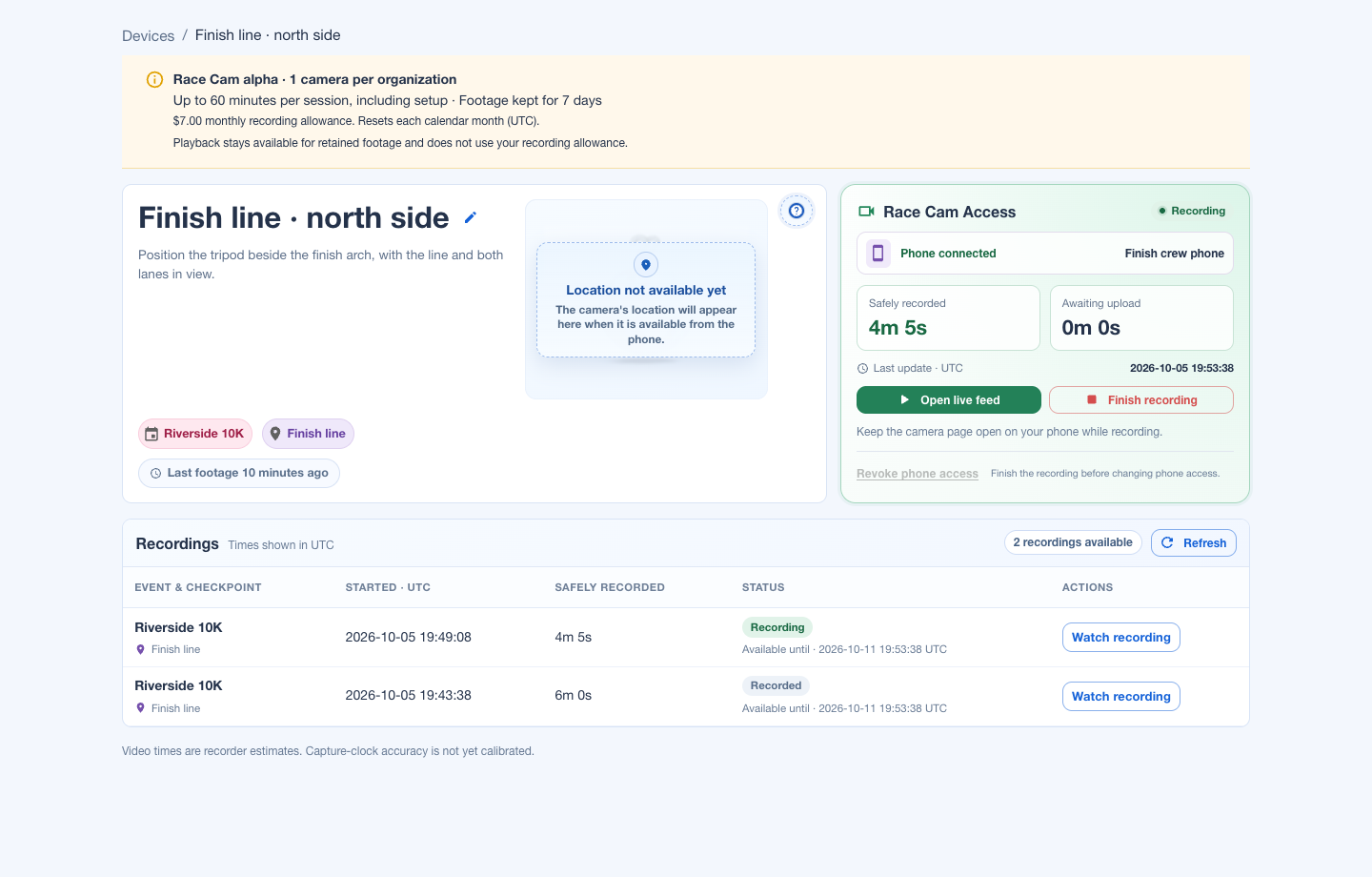
6. Watch live footage and replay a recording
For an active session with footage available, choose Open live feed. For saved footage, open Recordings and choose Watch recording. Use Refresh if the history has not updated, or Load older recordings to retrieve earlier sessions. Playback is offered for stored, unexpired footage.
The player provides:
- Pause video and Play video.
- Rewind 15 seconds.
- Jump to time · UTC and Go to time to review a specific moment.
- Return to live during an active session, or Latest footage after it has ended.
- Recorded intervals, which shows retained sections and gaps marked No footage. Use Next recorded interval when offered to move past a gap.
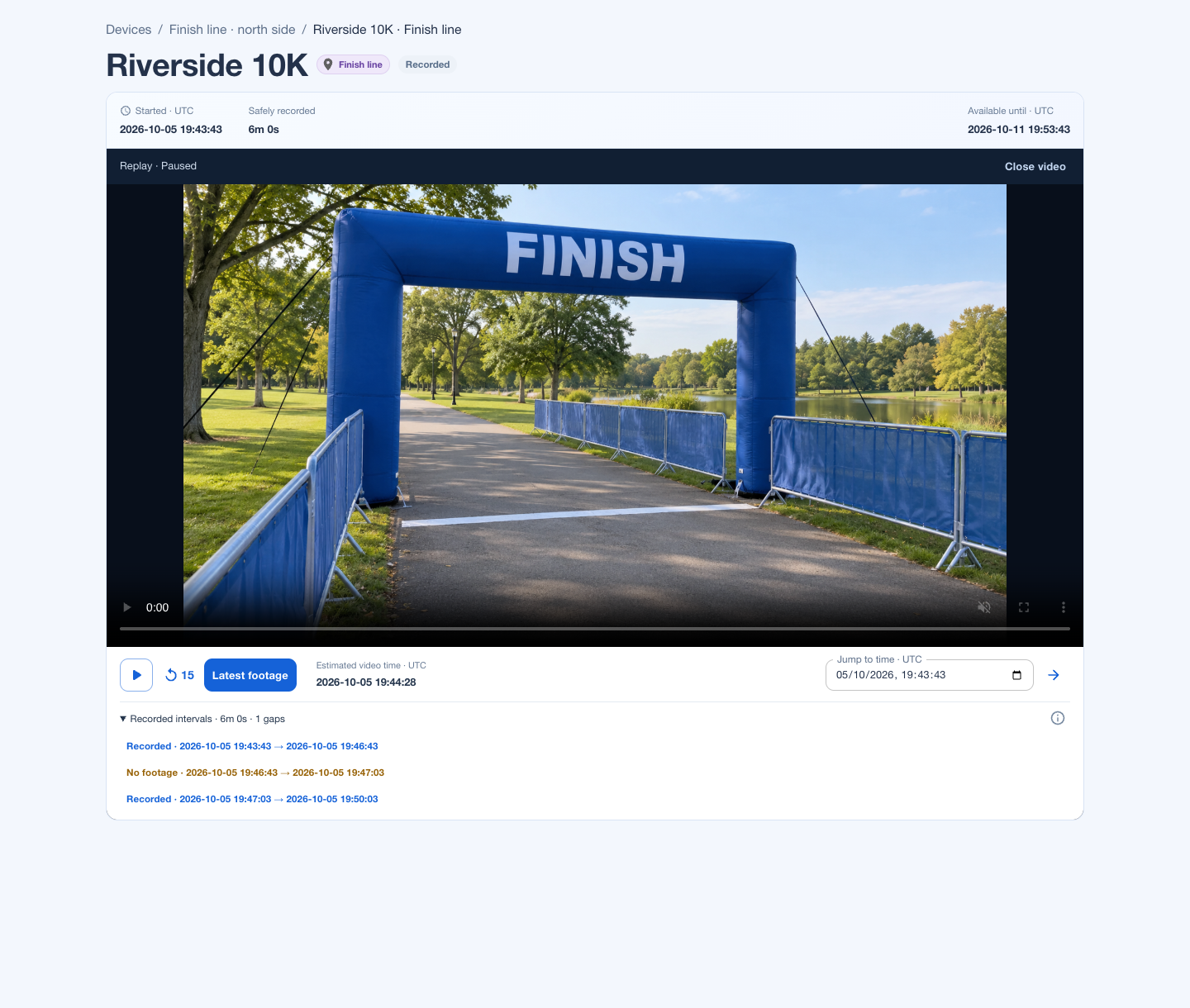
Video times are recorder estimates in UTC. Capture-clock accuracy is not calibrated for timing. Convert a local race time to UTC and review a margin around the expected moment. Seeking cannot restore footage that was not recorded. Live viewing depends on footage becoming available; no fixed latency is guaranteed.
Pausing, rewinding or closing the player does not finish capture. Downloading, MP4 export, clip trimming and public spectator links are not offered in this workflow.
7. Finish and check the archive
- On the phone or in Cloud, choose Finish recording and confirm. Cloud requires an owner or administrator account. In RRM, use End recording.
- Wait for completion. Pending uploads mean the archive is not yet confirmed complete. If Retry finish appears, check the connection and retry.
- Open Recordings, refresh, and check Safely recorded, the status and Available until. Play a section to verify the footage before leaving the checkpoint.
The session stops automatically at its deadline. The phone shows Finishing recording… while Cloud confirms the saved footage. A session whose time limit has expired cannot be resumed.
Stop camera interrupts video delivery and may leave a gap; it does not pause or reset the recording deadline. Use the explicit finish action when the session is over.
The archive is temporary. Playback becomes unavailable when a recording expires, and reopening its event does not extend retention. Use Available until, shown in UTC, for that recording's exact deadline.
Troubleshooting
| What you see | What to check or do |
|---|---|
| Request access or an access request under review | Wait for organization approval and check the request's status. The form itself does not enable capture. |
| Your organization already has its alpha camera. | Open the existing camera. The alpha allows one camera per organization. |
| Camera permission was denied. Allow camera access in your browser and try again. | Check the site's camera permission and choose Open camera again. Check HTTPS and browser support if it still fails. |
| This pairing link has expired or has already been used. Ask the operator for a new link. | Create a new pairing link. Do not reuse an old QR code. |
| Phone access has expired or was revoked. Ask the operator to pair this phone again. | Pair the phone again and verify recording status. Do not assume the session is still recording. |
| Reconnecting… or a connection-interruption notice | Keep the page open and check the network. Reconnection is attempted while access remains valid, but gaps may occur. Check confirmed footage afterwards. |
| Camera interrupted | Return the page to the foreground, check the view and use Resume camera or Resume video when offered. The session deadline continues. |
| Status unavailable | Check connectivity and refresh. The last confirmed duration does not prove that subsequent footage was stored. |
| All recording slots are busy. Try again shortly. Your saved footage is still available. | Try again later. You can continue reviewing retained footage. |
| New recordings are paused or the recording allowance is exhausted | Ask an administrator to review access and allowance. Creating another camera does not resolve the limit. |
| Recording needs recovery or persistent pending uploads | Review stored footage, keep the camera and recording reference, and contact support. Do not mark the archive as complete. |
| No footage was recorded at this time. | Select another recorded interval. The gap is missing video, not a broken playback button. |
| This recording has reached the end of its archive retention period. | The recording has expired. This workflow provides no retention extension or restore action. |
| Camera assigned to another event, or an active recording prevents changes | Finish the recording and review the assignment with an owner or administrator. A camera cannot be reassigned during capture. |
Could not reach Race Cam. Please try again. is a general error. It does not by itself identify a plan or permissions problem.
If Android reports an overlay when requesting location, close floating controls from other apps and retry with the camera off. If recording is active, finish it before trying that recovery. Location is optional.
Race-day checklist
- Organization access is approved and recording allowance is available.
- The correct camera and a management account are ready.
- RRM is version 1.1.1 or later; the event is synchronized and the checkpoint is assigned before capture.
- The phone is paired, camera permission is allowed, and the microphone is configured if needed.
- Power, mounting and framing are checked; the phone will remain visible and unlocked.
- A short test on the checkpoint's network has been started, confirmed as stored, finished and played back.
- An operator will monitor storage status, gaps and the session deadline.
- Review times are understood as UTC estimates, not calibrated timing results.
- At the end, completion is confirmed, footage is checked and its expiry is recorded.
Details still to confirm
- Official compatibility: supported phone models, browsers, minimum versions and minimum connection requirements. Test your intended setup before race day.
- Commercial availability: eligible plans, future pricing and your organization's effective allowance. The USD 7 alpha starting allowance is not a subscription fee; check the limits shown in Cloud.